

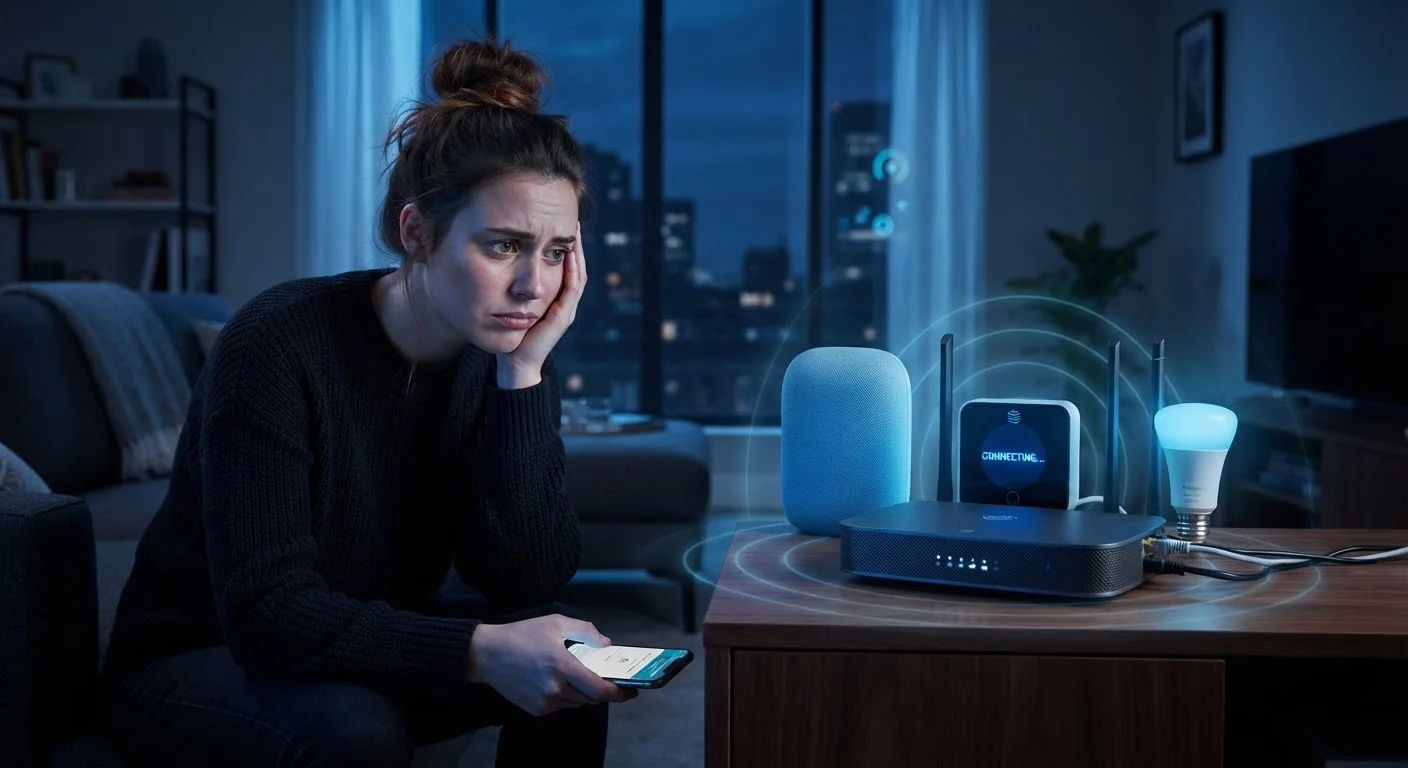
Why Smart Home Devices Lose Connection
Smart home devices are engineered to stay connected quietly in the background - so when they start dropping off your network, the disruption is immediate and frustrating. A light that won't respond, a thermostat that shows as offline, or a security camera that missed an event all point to the same underlying question: why did the connection fail?
The answer is almost never random. Dropouts typically trace back to a handful of identifiable causes - most involving your home network, device placement, or configuration choices. Understanding these root causes helps you move from guesswork to a targeted fix. For a plain-language refresher on the networking terms you'll encounter along the way, see the Home Network Glossary.
Placing the router too far from smart devices or behind obstructions.
Why it happens: Routers are often tucked into closets or entertainment centers for aesthetics, without accounting for how walls, appliances, and distance degrade the wireless signal.
Connecting smart devices to the 5 GHz band when they only support 2.4 GHz.
Why it happens: Many smart home devices - particularly older or budget-focused ones - only support the 2.4 GHz Wi-Fi band. Modern routers broadcast both bands under a single name by default, causing devices to connect to the wrong one.
Running outdated firmware on the router or the smart devices themselves.
Why it happens: Firmware updates feel optional and are easy to ignore, but manufacturers regularly issue patches that fix connectivity bugs, improve protocol compatibility, and address security vulnerabilities.
Overloading a single Wi-Fi channel with too many devices.
Why it happens: As smart home setups grow, dozens of devices compete for bandwidth on the same channel, leading to congestion, packet loss, and dropouts - especially during peak usage hours.
Ignoring physical interference sources near smart devices or the router.
Why it happens: Microwaves, cordless phones, baby monitors, and even neighboring Wi-Fi networks operate on overlapping frequencies, causing intermittent signal disruption that looks like random disconnections.
Network Habits That Make Dropout Problems Worse
Even after addressing hardware and placement issues, certain network management habits can reintroduce instability. One often-overlooked factor is DHCP address conflicts: when your router assigns a new IP address to a device that another device is already using, both can lose connectivity. Assigning static IP addresses (or DHCP reservations) to smart home devices in your router's settings prevents this from happening.
Restarting Your Router Isn't Always Enough
A router reboot clears temporary memory issues but won't fix underlying configuration problems like duplicate IP addresses, incorrect DNS settings, or channel congestion. If dropouts return quickly after a reboot, investigate your router's admin settings for deeper configuration issues rather than cycling power repeatedly.
Security practices also intersect with stability. Keeping IoT devices on a separate network segment - sometimes called a guest or VLAN network - reduces congestion and limits the impact if one device misbehaves. Our guide to smart home network security covers this in detail. If you want to understand how your devices communicate with each other and with cloud services, local vs. cloud processing is another important variable - some devices go fully offline when a manufacturer's server has downtime, regardless of your home network health.
Finally, understanding how your devices relate to each other through ecosystems like Matter, Zigbee, or Z-Wave can clarify why some dropout problems are protocol-level rather than network-level. The Smart Home Ecosystems guide explains how these communication layers work and what compatibility really means in practice.
The content on this site is provided for informational purposes only and should not be considered a substitute for professional advice. While we strive to provide accurate and up-to-date information, we make no guarantees regarding its completeness or accuracy. Always consult a qualified professional for advice specific to your circumstances before making any decisions.