

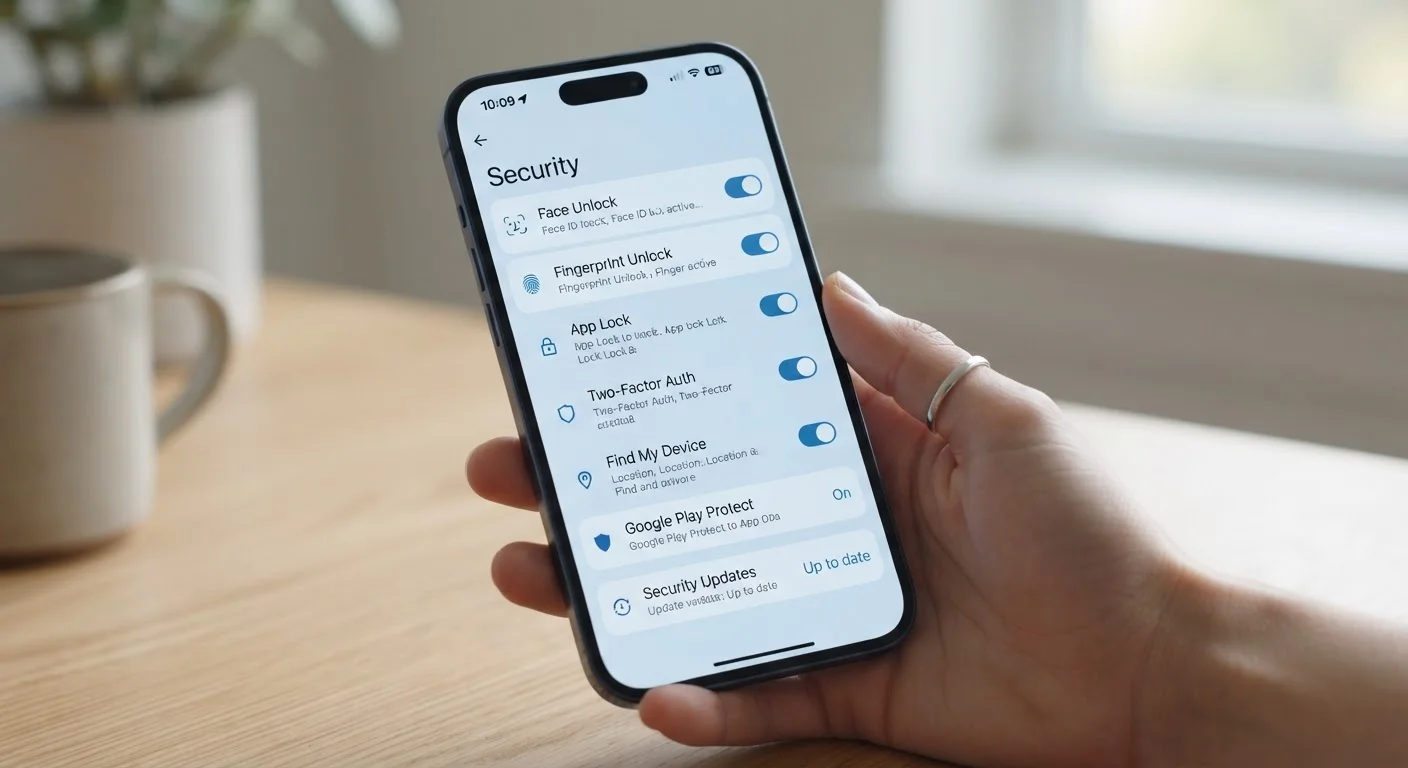
The Security Gap Already on Your Phone
Smartphone manufacturers invest heavily in built-in security tools - but most of those tools ship in a partial or disabled state, waiting for users to turn them on. The result is a significant gap between the protection your phone could offer and what it actually provides on any given day.
This isn't a problem that requires new hardware or expensive software. The settings covered here are available on the vast majority of modern smartphones, and enabling them costs nothing. What they do require is a few minutes of deliberate attention - something most people defer indefinitely because the settings feel obscure or optional.
They aren't optional. As smartphones increasingly store health data, financial credentials, work files, and personal communications, the consequences of a compromised device extend well beyond an inconvenience. If you're new to thinking about your phone's security profile, our guide for first-time smartphone owners also covers foundational setup steps worth revisiting.
Settings Vary by Device and OS Version
The exact names and locations of these settings differ between Android manufacturers and iOS versions. If you can't locate a specific option, searching your device's settings app by keyword (such as "USB" or "two-factor") is the fastest way to find it. Keeping your operating system updated also ensures you have access to the latest security features.
Seven Settings Worth Enabling Today
Two-Factor Authentication on Your Apple or Google Account
Your smartphone account - whether Google or Apple ID - is the master key to nearly everything on your device: contacts, photos, payment methods, and passwords. Two-factor authentication (2FA) requires a second verification step (typically a code sent to a trusted device or generated by an authenticator app) whenever someone logs in from an unfamiliar location.
Despite being widely available for years, many users still haven't enabled it. You can turn it on through your Google Account settings or via Settings > [Your Name] > Sign-In & Security on iOS. An authenticator app is generally more secure than SMS codes, which can be intercepted through a technique called SIM swapping.
Your account password alone is not enough - 2FA adds a critical second barrier.
App Permission Audits
Over time, apps accumulate permissions - access to your microphone, camera, contacts, location, and more - that they no longer need, or never truly needed in the first place. Both Android and iOS let you review and revoke these permissions individually through your device's privacy or app settings menu.
It's worth checking which apps have access to your precise location versus approximate location, and whether any have microphone or camera access running in the background. Revoking unnecessary permissions doesn't break most apps; it simply limits their reach into your personal data.
Many apps retain permissions long after you've stopped actively using them.
Automatic Screen Lock with a Strong Passcode
A six-digit PIN is the minimum recommended passcode length on modern smartphones - four-digit codes offer far fewer unique combinations and are more vulnerable to shoulder surfing or brute-force attempts. Beyond length, setting your screen to lock automatically after 30 seconds or one minute of inactivity closes a common window of opportunity if your phone is left unattended.
Biometrics (fingerprint or face unlock) are convenient, but they should complement a strong passcode, not replace it entirely - you'll still need the passcode in certain situations, such as after a restart.
A short auto-lock timer is one of the simplest defenses against unauthorized access.
Find My Device and Remote Wipe
Both Android's Find My Device and Apple's Find My network allow you to locate, lock, or remotely erase your phone if it's lost or stolen. These features are often pre-installed but not always activated - and they require an internet connection on the device to function.
Remote wipe is particularly important if your phone contains sensitive financial or work-related information. Confirm that the feature is enabled in your account settings before you ever need it, because you won't be able to activate it retroactively once a device is offline or factory-reset by someone else.
Remote wipe only works if it's already activated before the phone goes missing.
Lockdown Mode and Restricted USB Access
Modern smartphones offer settings that restrict what can happen when the phone is physically connected to a computer via USB. On iOS, enabling "USB Accessories" restrictions under Face ID & Passcode means that accessories plugged in after the screen has been locked for an hour cannot access data. Android offers similar protections through developer options and USB connection defaults.
iOS also includes an optional Lockdown Mode (introduced for high-risk users) that severely limits the device's attack surface - blocking most message attachment types, disabling link previews, and restricting certain web technologies. Most users won't need Lockdown Mode, but USB data transfer restrictions are a sensible default for anyone.
Restricting USB data access prevents unknown computers from pulling data off your phone.
Notification Privacy on the Lock Screen
By default, many apps display the full content of messages and alerts directly on your lock screen - meaning anyone who glances at your phone can read incoming texts, emails, or banking alerts without unlocking it. Both Android and iOS allow you to set notifications to show only the app name (or nothing at all) until the device is unlocked.
This is especially relevant in public spaces. The setting is found under Notifications in your system settings, and you can configure it globally or on a per-app basis - so sensitive apps like banking or messaging can be hidden while less sensitive ones remain visible.
Full notification previews on a lock screen can expose private messages to anyone nearby.
Encrypted Backups
Cloud backups protect your data if your phone is lost, but a backup that isn't encrypted is a potential liability. On iOS, local backups made through a computer are unencrypted by default - you have to manually check the "Encrypt local backup" option in Finder or iTunes. iCloud backups are encrypted in transit and at rest, but end-to-end encryption (called Advanced Data Protection) is an optional setting that must be enabled separately.
Android users should verify that their Google account backup uses end-to-end encryption, which is available in newer Android versions. Understanding what gets saved - and how securely - is essential context. See our guide to what phone backups actually save for more detail on coverage gaps.
An unencrypted backup can expose just as much data as an unlocked device.
Review Security Settings Every Few Months
App updates and OS changes can quietly reset or alter permissions. Set a recurring reminder to audit your app permissions and account security settings a few times a year. It takes less than ten minutes and can catch changes you didn't intentionally make.
Building Habits Beyond the Settings Menu
Enabling these settings is a strong foundation, but mobile security is an ongoing practice rather than a one-time checklist. Operating system updates routinely patch vulnerabilities - keeping your phone updated is one of the highest-impact habits you can maintain. Similarly, periodically reviewing which apps are installed (and removing ones you no longer use) reduces your overall exposure.
For those who have connected smart devices at home, the same principle applies across your network. Our article on keeping your smart home secure extends these ideas to connected devices beyond your phone. And if you're thinking about the broader picture of what owning a smartphone actually involves, the hidden costs of smartphone ownership is worth reading alongside this guide.
Security tools only protect you if they're active. Taking the time to switch them on - and checking in on them occasionally - is one of the most straightforward ways to keep your personal data where it belongs.
The content on this site is provided for informational purposes only and should not be considered a substitute for professional advice. While we strive to provide accurate and up-to-date information, we make no guarantees regarding its completeness or accuracy. Always consult a qualified professional for advice specific to your circumstances before making any decisions.