

The Three Types of Storage You Actually Have
When your phone says it's running out of space, which kind of space does it mean? Most devices deal with three distinct layers of storage, and confusing them leads to a lot of unnecessary frustration.
Internal storage is the permanent, built-in drive where everything lives: your apps, downloaded music, photos, and the operating system itself. Think of it as the filing cabinet in your phone - it holds everything whether the device is on or off. This number is what manufacturers advertise (64GB, 128GB, 256GB, and so on).
RAM - short for Random Access Memory - is your phone's short-term workspace. It holds only what's actively running right now. When you switch between apps, RAM determines how quickly the previous app reloads. Low RAM causes stuttering and crashes during active use, but it doesn't affect how much you can save. For a deeper look at how these specs appear on a phone's listing, see reading a smartphone spec sheet.
Cloud storage is remote server space provided by services such as iCloud or Google Photos. Files stored in the cloud are accessible from any device with an internet connection, but they do not live on your phone. Cloud storage is best understood as an extension of your storage capacity, not a replacement for internal space.
~10-15%
Minimum free storage for healthy performance
Device manufacturers and mobile operating system documentation generally recommend keeping at least 10-15% of internal storage free to maintain normal system performance.
3-6 GB
Typical OS footprint on modern smartphones
Mobile operating systems - including their core apps and system files - commonly occupy several gigabytes of internal storage that are unavailable to the user from the outset.
~400 MB
Average size of a one-minute 4K video
Video file sizes vary by resolution and codec, but 4K footage recorded on a modern smartphone typically runs between 300-500 MB per minute, making video the fastest way to fill available storage.
What Actually Fills Up Internal Storage
Understanding what occupies space helps you manage it more deliberately. The usual suspects, in rough order of impact:
- Photos and videos: A single 4K video clip can run several gigabytes. For most users, the camera roll is the single largest storage consumer.
- Apps: Installed apps range from a few megabytes to several gigabytes each, and many grow larger over time as they cache user data.
- Downloaded media: Podcasts, music playlists, and offline maps are often forgotten but accumulate quickly.
- App cache and temporary files: Apps routinely store temporary data to speed up future sessions. This data is useful but can grow unchecked.
- System files: The operating system itself occupies a fixed portion of internal storage - typically several gigabytes - that is unavailable to the user.
It's worth noting that the advertised storage capacity of a device is never entirely available to you. A phone marketed as 128GB might show roughly 110-115GB usable after the operating system is installed.
A user with a 64GB phone finds the camera app refusing to save new photos, even though the phone appears to be working normally.
Someone offloads all their photos to a cloud service, then finds they can't access vacation pictures while traveling internationally without data service.
A user notices their 256GB phone with 230GB used has become noticeably slower to open apps and respond to taps over the past few weeks.
When Low Storage Becomes a Performance Problem
Running out of space isn't just inconvenient - it actively degrades how your device operates. Mobile operating systems rely on free internal storage to perform routine background tasks: writing temporary files, managing app updates, and caching recently used data for faster retrieval.
When available storage drops below roughly 10-15% of total capacity, the system starts competing with itself for space. The result is slower app launches, longer save times for photos, unresponsive menus, and in some cases, apps that refuse to open entirely. In severe cases, the camera may fail to save new photos because there is nowhere to write the file.
The problem is self-reinforcing: a slowed system takes longer to complete the very cleanup tasks that would free up space, creating a cycle that worsens gradually rather than failing all at once.
Check Storage Before You Notice a Problem
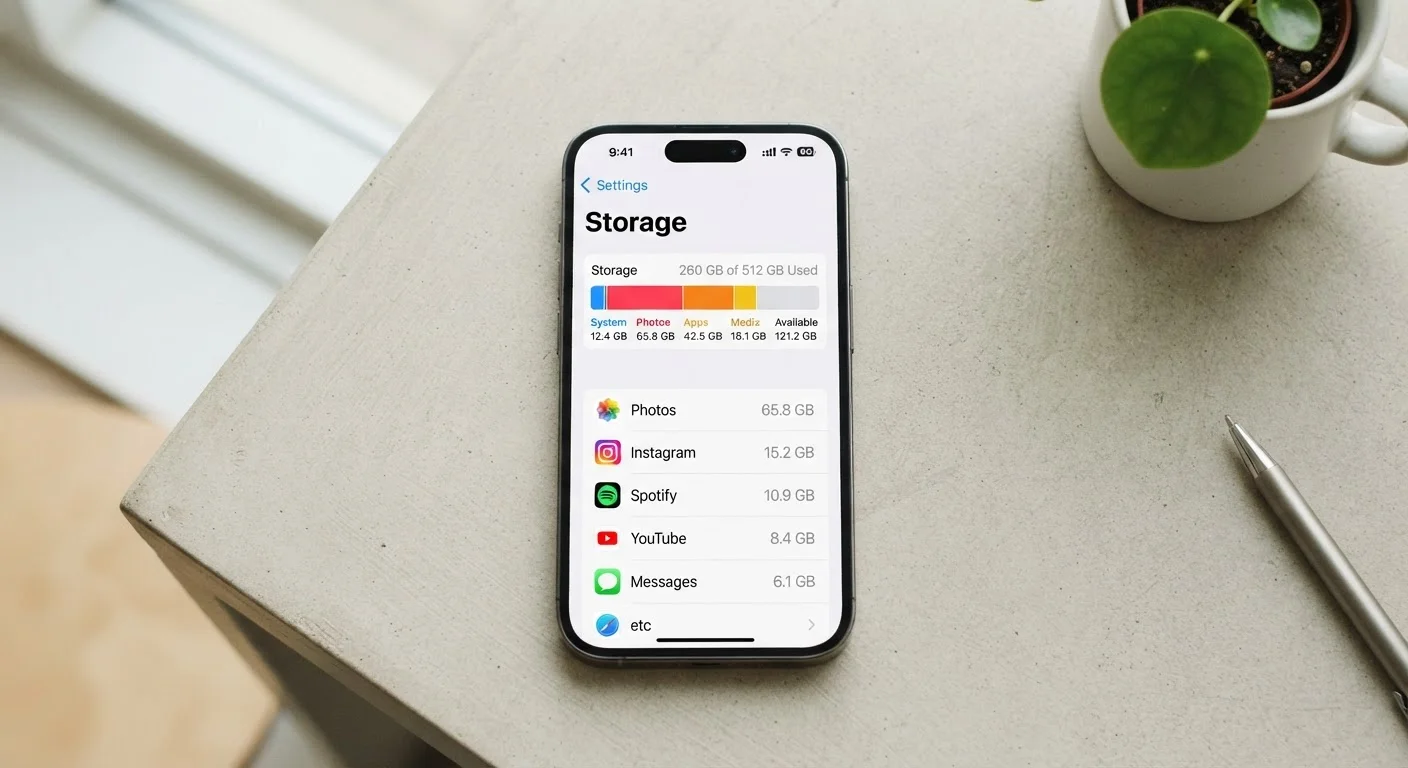
Most phones display a detailed storage breakdown in Settings under Storage or General > iPhone Storage (iOS). Reviewing this periodically - rather than waiting for a 'storage full' warning - gives you a clearer picture of what's accumulating. Large apps, old downloads, and cached data are often visible at a glance and easy to address before they affect performance.
If you're looking for practical ways to recover space before performance degrades seriously, extending the life of a phone you already own covers a range of targeted approaches. And before assuming files are safely backed up to the cloud, it's worth understanding what a phone backup actually saves - cloud backups are often less complete than users expect.
Cloud Storage: What It Can and Cannot Do
Cloud storage is genuinely useful for offloading photos, videos, and documents - freeing up internal space while keeping files accessible. But it operates within real limitations that are worth understanding clearly.
Files stored exclusively in the cloud require an active internet connection to view or use. If you're on a flight, in a dead zone, or have exhausted your mobile data, those files are temporarily out of reach. Apps, by contrast, must always be installed locally - there is no such thing as streaming an app from the cloud in the same way you stream a video.
Cloud services also have their own storage tiers and costs. Free allocations vary by provider and fill up faster than most users anticipate, particularly for anyone who shoots a lot of photos or video.
For users interested in how cloud versus local processing plays out in a broader home technology context, local vs. cloud processing in smart home devices explores similar trade-offs across connected home products.
Cloud Backup Is Not the Same as Cloud Storage
Cloud backup creates a copy of your device's data for recovery purposes - it is not the same as actively storing files in the cloud and deleting them locally. Backing up your phone does not automatically free internal storage. Understanding this distinction prevents an unpleasant surprise when you try to reclaim space.
Frequently Asked Questions
Internal storage holds everything permanently - apps, photos, music, and files. RAM (Random Access Memory) is temporary workspace that the phone uses to run apps currently open. Low RAM causes apps to stutter or crash; low internal storage affects the whole device's speed and your ability to install anything new.
The operating system needs free space to write temporary files, cache data, and perform background tasks. When storage is critically low - typically below 10% of total capacity - the system struggles to complete these routine operations, which results in slower performance, app crashes, and longer load times.
Not entirely. Cloud storage keeps copies of files on remote servers, freeing up some local space, but you need an active internet connection to access those files. Apps, the operating system, and cached data must still reside on internal storage.
Most modern smartphones have fixed internal storage that cannot be expanded. Some Android devices accept a microSD card to extend storage for photos and media, though not all apps can be moved there. Check your phone's specifications to confirm whether expandable storage is supported.
Storage needs vary widely depending on how many photos you take, which apps you use, and whether you stream or download media. A user who streams music and relies heavily on cloud photos may find 64GB sufficient, while someone who shoots lots of video or plays large games may need 256GB or more.
Large video files and downloaded media are usually the quickest wins. After that, check app caches through your device's settings - many apps accumulate gigabytes of temporary data that can be cleared without losing anything important. Duplicate photos are another common culprit.
The content on this site is provided for informational purposes only and should not be considered a substitute for professional advice. While we strive to provide accurate and up-to-date information, we make no guarantees regarding its completeness or accuracy. Always consult a qualified professional for advice specific to your circumstances before making any decisions.