

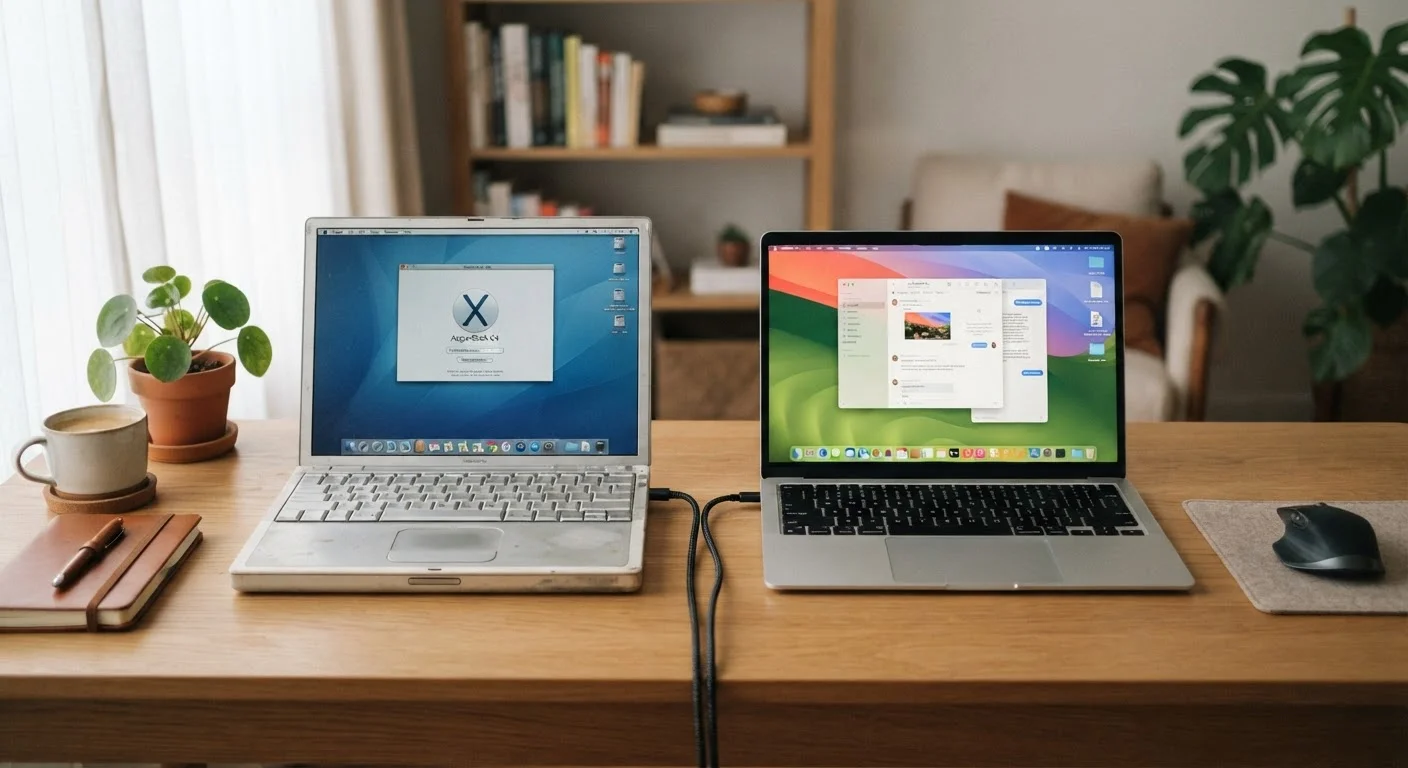
Why Computer Migrations Feel Harder Than They Are
The anxiety around switching to a new computer usually comes from one place: fear of losing something important. In practice, a structured approach reduces that risk to near zero. Modern operating systems, cloud services, and browser accounts do most of the heavy lifting automatically - the key is knowing which pieces need a little manual attention.
If you are still deciding between a laptop and a desktop for your new setup, see our guide to choosing between a laptop and desktop before you start this process. Once you know what you are moving to, the steps below will carry everything across cleanly.
Back Up Before You Begin
Never start a computer migration without first creating a full backup of your old machine. A backup protects against accidental deletion, hardware failure during transfer, or any other unexpected issue. Use an external hard drive, a USB drive, or a cloud storage service to store a complete copy of your important files before proceeding.
The three categories that need attention are: files (documents, photos, videos), settings (browser data, app preferences), and applications (which must be reinstalled, not copied). Each has a straightforward solution covered in the steps below.
What you will need
What You Will Need
Having the right tools ready before you start prevents unnecessary interruptions mid-transfer. The items below cover the most common migration scenarios - cloud-based, offline, and hybrid.
External Hard Drive or USB Drive
Stores a complete offline backup of your files from the old computer before migration begins.
Cloud Storage Account (OneDrive, Google Drive, or iCloud)
Automatically syncs documents, photos, and settings across both computers via the internet.
USB-A to USB-C Cable or Transfer Cable
Enables direct file transfer between two computers when cloud sync is unavailable or slow.
You do not need all three options. Choose based on your internet speed and how much data you are moving. Large photo or video libraries (over 50 GB) often transfer faster via an external drive than over a home internet connection.
Step-by-Step: Moving Everything Across
Follow these steps in order. Skipping the backup step is the only way this process can go seriously wrong - everything else is recoverable.
Create a Full Backup of Your Old Computer
Connect an external hard drive and copy your entire Documents, Pictures, Videos, Desktop, and Downloads folders to it. On Windows, you can also use File History (Settings > Update & Security > Backup) to create a structured backup automatically. On a Mac, use Time Machine. This offline backup is your safety net throughout the entire process.
Sign In to Your Cloud Storage on the Old Computer
If you use OneDrive, Google Drive, or iCloud, make sure all critical folders on your old machine are set to sync to the cloud before you begin. Check that the sync has fully completed - look for the green checkmark or cloud icon on each file - before moving on. This creates a live, off-site copy of your most important data.
Export Browser Bookmarks and Saved Passwords
In Chrome, Firefox, Edge, or Safari, sign in to your browser account and enable sync. This carries over bookmarks, saved passwords, browsing history, and extensions automatically. If you prefer not to use account sync, most browsers offer a manual export option: go to the browser's bookmark manager and look for an Export Bookmarks option to save an HTML file you can import on the new machine.
Note Your Installed Applications and License Keys
Apps cannot simply be copied from one computer to another - they need to be freshly installed. Open your old computer's app list (on Windows: Settings > Apps; on Mac: Applications folder) and write down every program you use regularly. Locate license keys for any paid software - check your email inbox for purchase receipts or look in the software's own Help > About menu. Subscription-based software tied to an account (Adobe, Microsoft 365) just needs a sign-in on the new machine.
Transfer Files to the New Computer
You have three practical options: 1. Cloud sync - sign in to OneDrive, Google Drive, or iCloud on the new computer and let it download your files automatically. 2. External drive - plug in the drive you backed up in Step 1 and copy folders across. 3. Direct cable transfer - on Windows, you can connect both computers with a compatible transfer cable and use File Explorer to drag files across. For most users, cloud sync is the simplest and most reliable method.
Reinstall Your Applications
Download and install each application from its official source using the list you made in Step 4. Enter your license keys or sign in with your accounts as prompted. For Microsoft 365, Adobe Creative Cloud, and similar subscription services, simply signing in activates the software on the new device. Check that each app opens correctly and that your data - such as project files or preferences - has carried over from your cloud backup.
Verify Everything Before Retiring the Old Computer
Spend a day or two using the new computer as your primary machine before doing anything with the old one. Open files from every category - documents, photos, projects - and confirm they are all present and uncorrupted. Test each reinstalled app. Check that your browser bookmarks, email, and passwords are all accessible. Only once you are satisfied should you consider reformatting or passing on the old device.
Use Cloud Sync as a Safety Net
If your files are already syncing to OneDrive, Google Drive, or iCloud, they will appear automatically on your new computer once you sign in. This is often the fastest migration path for documents, photos, and desktop files, and it gives you a live backup at the same time.
After the Transfer: Building Good Habits on the New Machine
Once you are settled on the new computer, it is worth setting up ongoing backup habits so you never need to worry about data loss again. Our guide to keeping your computer running well covers the simple routines that protect your machine and your data over the long term.
If your new computer is a laptop, also consider reviewing what to configure before you start using a new laptop - including privacy settings, software updates, and enabling automatic backups from day one.
Don't Wipe Your Old Computer Too Soon
Keep your old computer intact and accessible until you have confirmed every file, setting, and application is working correctly on the new machine. Rushing to erase or sell the old device is one of the most common causes of permanent data loss during a migration.
Migration is a one-time task, but the habits you build immediately afterward determine how smoothly your new computer serves you for years to come.
The content on this site is provided for informational purposes only and should not be considered a substitute for professional advice. While we strive to provide accurate and up-to-date information, we make no guarantees regarding its completeness or accuracy. Always consult a qualified professional for advice specific to your circumstances before making any decisions.