

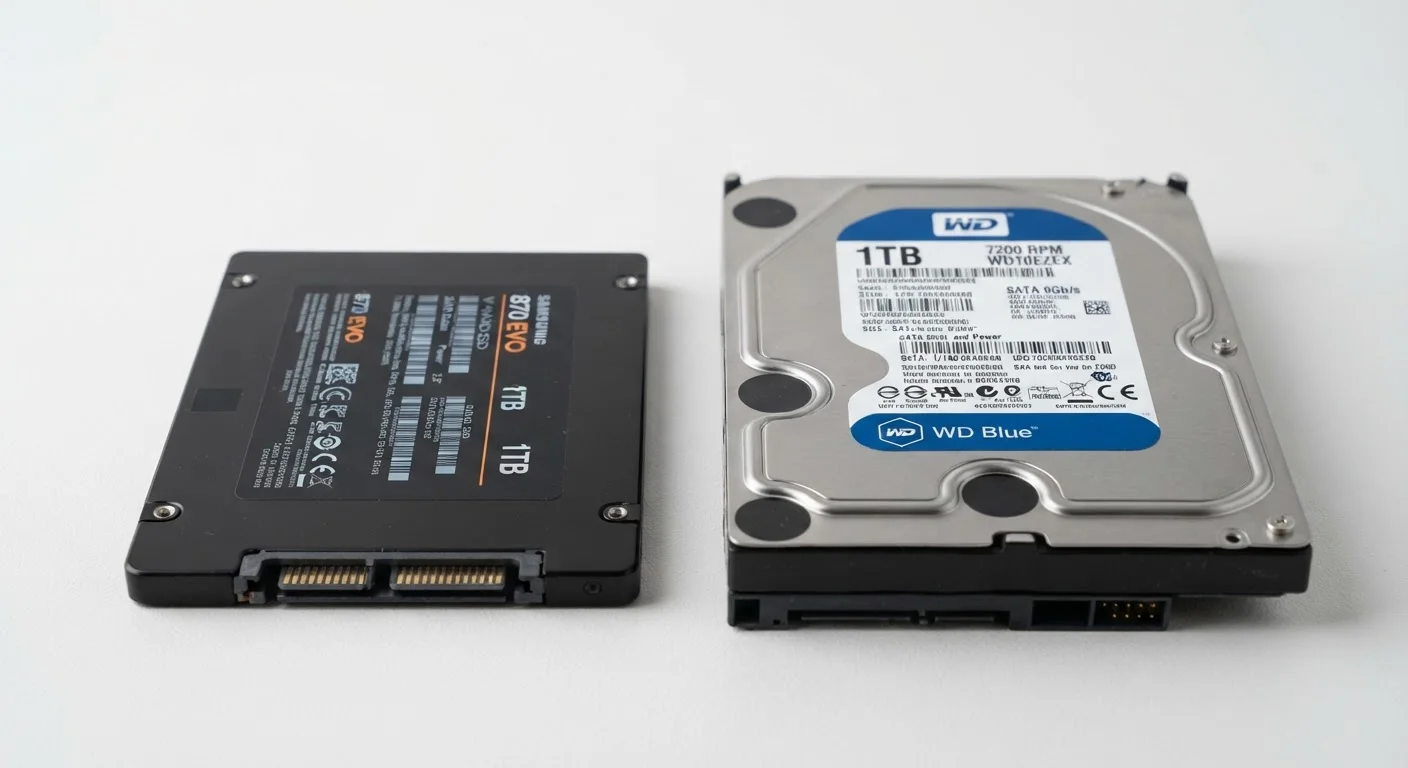
Option A
SSD (Solid-State Drive)
The fast, silent, modern standard.
Best for: Everyday users who want a snappy, responsive computer with no moving parts and strong durability.
Option B
HDD (Hard Disk Drive)
The high-capacity, budget-friendly veteran.
Best for: Users who need large amounts of storage space at a lower cost, often for archiving or secondary storage.
What Makes These Two Drive Types Fundamentally Different
At their core, SSDs and HDDs solve the same problem - storing your data - but they do it in completely different ways. A hard disk drive (HDD) works mechanically: a rigid magnetic platter spins at high speed while a tiny read/write arm sweeps across its surface to retrieve or save data. It's a remarkably engineered piece of hardware, but it's inherently limited by the laws of physics that govern moving parts.
A solid-state drive (SSD), by contrast, has no moving parts at all. It stores data on interconnected flash memory chips - similar in concept to the storage inside a USB thumb drive, but far faster and more sophisticated. When your computer requests a file, the SSD retrieves it electronically rather than mechanically, which is why the speed difference between the two is so dramatic in practice.
This fundamental architecture gap explains nearly every meaningful difference between the two: speed, noise, durability, power consumption, and price per gigabyte.
| Criterion | SSD | HDD |
|---|---|---|
| Data storage method | Flash memory chips | Spinning magnetic platters |
| Typical read speed | 500-7,000+ MB/s | 80-160 MB/s |
| Moving parts | None | Yes (platter, read/write arm) |
| Shock resistance | High | Low to moderate |
| Noise output | Silent | Audible (spinning, clicking) |
| Power consumption | Lower | Higher |
| Cost per terabyte | Higher | Lower |
| Common max capacity (consumer) | Up to 8 TB (mainstream: 1-2 TB) | Up to 20+ TB |
Speed and Real-World Performance
Speed is the area where SSDs have the clearest advantage. A typical HDD reads data sequentially at roughly 80-160 MB/s; a mainstream SATA SSD operates at around 500-550 MB/s, and faster NVMe SSDs can exceed 3,000 MB/s. For everyday tasks, this translates into noticeably quicker boot times, faster application launches, and snappier file transfers.
For context, opening a large photo-editing project, launching a browser with dozens of tabs, or loading a complex spreadsheet all involve pulling many small files from storage simultaneously. HDDs struggle with this kind of random access because the drive head must physically reposition itself for each piece of data. SSDs handle it almost instantaneously.
3-4×
Faster boot times with SSD vs HDD
Industry benchmarks consistently show SSD-equipped systems booting Windows in under 15 seconds versus 45-60 seconds for comparable HDD systems.
~$0.02-0.04
Approximate HDD cost per gigabyte (USD)
HDD pricing per gigabyte remains substantially lower than SSD pricing, making it attractive for bulk archival storage as of recent market surveys.
~1.5W
Typical SSD active power draw
SSDs generally consume 1-3 watts under load, compared to 6-10 watts for a typical 3.5-inch HDD, according to drive manufacturer specifications.
If you're thinking about how storage fits into your broader hardware decisions, see our guide on matching hardware to your actual tasks for a fuller picture of which specs genuinely matter.
Durability, Noise, and Power Draw
Because HDDs contain spinning platters and a mechanical arm, they are sensitive to physical shock. Dropping a laptop mid-operation - even from a short height - can result in a head crash, where the read/write arm makes contact with the platter and corrupts data. SSDs carry no such risk from physical impact, making them the more practical choice in portable computers.
HDDs also produce audible noise: the whir of spinning platters and the faint clicking of the arm are normal sounds that SSDs simply don't make. On battery-powered devices, this matters too - spinning a motor continuously draws more power than reading from flash memory chips, so HDDs contribute to shorter battery life in laptops.
Good storage habits matter regardless of drive type. Our tips on keeping your computer running well cover practices that apply to both.
Capacity, Cost, and How Most Computers Use Both
The HDD's enduring advantage is price per gigabyte. A 4 TB HDD typically costs considerably less than a 4 TB SSD of comparable quality. For users building large local archives - years of home video footage, raw photography libraries, or bulk backups - this cost difference remains meaningful.
This is why many desktop configurations pair both drive types: a smaller SSD holds the operating system and frequently used applications for speed, while a larger HDD provides economical mass storage. It's a practical middle ground that doesn't force a choice between performance and capacity.
NVMe vs. SATA: A Note on SSD Types
Not all SSDs are equally fast. SATA SSDs connect via the same interface as HDDs and are limited to around 550 MB/s. NVMe SSDs use a faster PCIe interface and are common in modern laptops and desktops, often exceeding 3,000 MB/s. When reviewing a computer's specs, the SSD type tells you more about real-world speed than the capacity alone.
If you're weighing the broader question of which type of computer suits your needs, our laptop vs. desktop comparison covers how storage choices factor into that decision as well.
The content on this site is provided for informational purposes only and should not be considered a substitute for professional advice. While we strive to provide accurate and up-to-date information, we make no guarantees regarding its completeness or accuracy. Always consult a qualified professional for advice specific to your circumstances before making any decisions.