

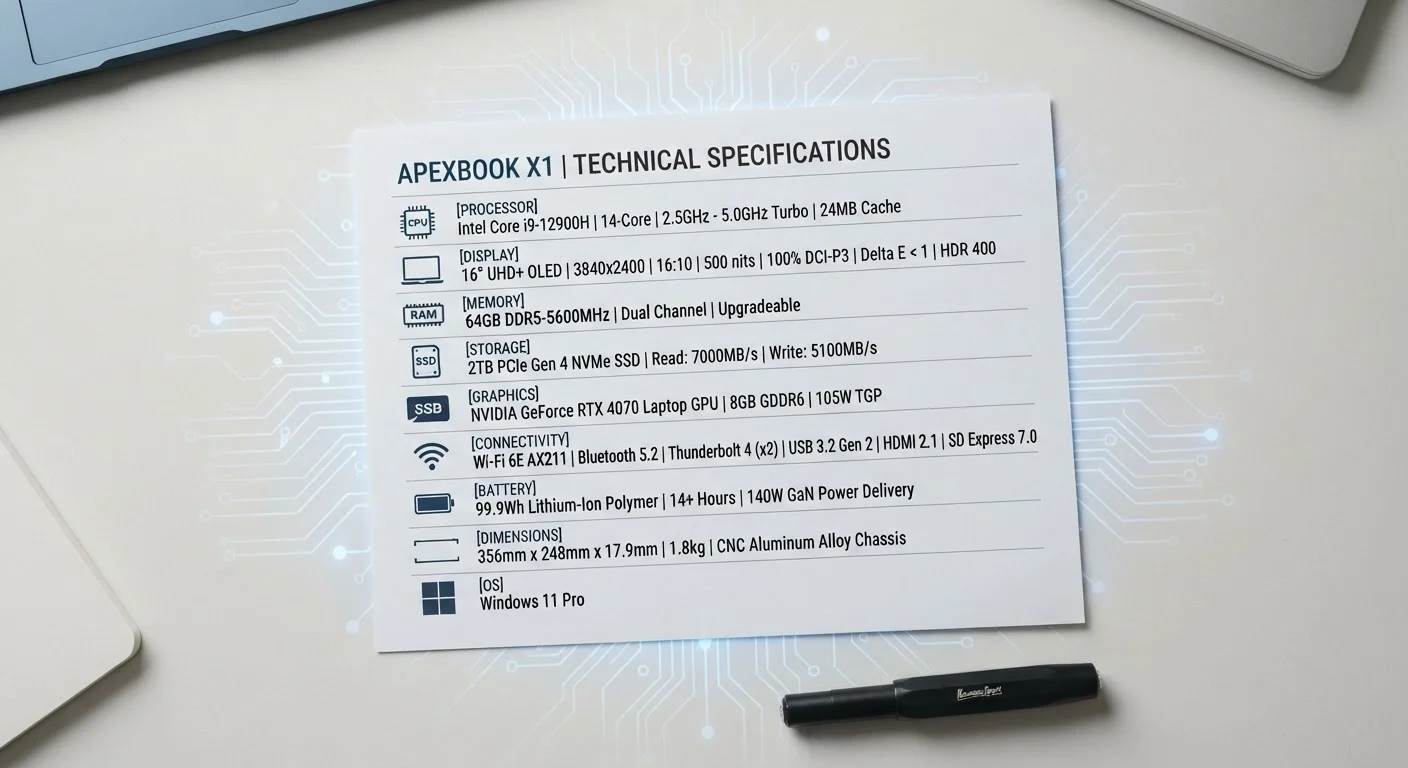
RAM: Your Laptop's Short-Term Memory
When a spec sheet lists something like 16 GB RAM, it is describing the laptop's Random Access Memory - the temporary workspace your machine uses while programs are running. Think of it as a physical desk: RAM is the desk surface itself, not the filing cabinet. The more desk space you have, the more projects you can spread out simultaneously without constantly shuffling things away.
When you open a web browser, a spreadsheet, and a video call at the same time, all three are drawing on RAM. If your laptop runs low, it slows down noticeably - apps freeze, tabs reload, and the whole experience feels sluggish.
- 8 GB - adequate for light everyday use: email, basic browsing, document editing
- 16 GB - comfortable for multitaskers and those using moderately demanding software
- 32 GB or more - relevant mainly for video editors, software developers, and power users
One important nuance: on many modern laptops, RAM is soldered directly to the motherboard and cannot be upgraded later. If the spec sheet says onboard or soldered RAM, what you buy is what you live with.
~3x
Speed difference: SSD vs HDD boot time
Industry benchmarks consistently show SSDs booting a typical operating system in under 15 seconds compared to 40-60 seconds for traditional hard drives.
16 GB
RAM considered standard for modern multitasking
Many PC hardware analysts and operating system vendors increasingly cite 16 GB as the practical baseline for smooth multitasking on current operating systems.
2-4 cores
Cores used by most everyday computing tasks
Research into typical consumer workloads, including web browsing and office software, shows most tasks actively use between 2 and 4 cores at any given time.
Storage: Capacity and Speed Are Two Different Things
Storage is where your files, applications, and operating system permanently reside - unlike RAM, it is not wiped when you shut down. The spec sheet will give you two key pieces of information: how much (in GB or TB) and what type (SSD or HDD).
Capacity is straightforward: 1 TB holds roughly four times as much as 256 GB. But capacity alone does not tell the whole story.
Type matters more for everyday feel:
- SSD (Solid State Drive) - uses flash memory with no moving parts. Boots up in seconds, opens files nearly instantly, and handles daily tasks with speed and silence.
- HDD (Hard Disk Drive) - uses spinning magnetic platters, is cheaper per GB, but significantly slower and more fragile physically. Increasingly rare in new laptops.
- NVMe SSD - a faster variant of SSD that connects directly to the processor rather than through older pathways. Listed on spec sheets as M.2 NVMe; noticeably quicker for large file transfers.
For most users, an SSD is the single biggest factor in making a laptop feel fast. A machine with a modest processor but an SSD will feel snappier in daily use than a higher-spec machine running an HDD.
For a broader breakdown of the terms you'll encounter across spec sheets, see the computer terms glossary covering everything from bandwidth to USB-C.
Processors: Decoding GHz, Cores, and Generation Numbers
The processor - also called the CPU - is the brain of the laptop. Spec sheets typically include three types of information about it: the brand and model name, the clock speed in GHz, and the core count.
Clock Speed (GHz)
GHz stands for gigahertz and measures how many billions of operations a single processor core completes per second. A processor listed at 3.5 GHz can theoretically process 3.5 billion cycles per second. Higher GHz can mean faster single-task performance - useful for things like loading a single large file or running a calculation-heavy spreadsheet.
Core Count
Modern processors contain multiple independent processing units called cores. A quad-core (4-core) chip can genuinely handle four streams of work in parallel. More cores help with tasks designed to use them - video rendering, audio production, and running multiple virtual environments simultaneously. For simple everyday computing, extra cores above 4 deliver diminishing returns.
Generation Numbers
Processor generations matter because newer architectures are often significantly more efficient than older ones at the same clock speed. A current-generation processor at 2.8 GHz can outperform an older-generation chip at 3.5 GHz on many real-world tasks, while also consuming less battery power. Always check the generation number alongside the GHz figure - they work together.
“Most buyers fixate on gigahertz when shopping for a processor, but the architecture and generation of a chip often matter far more than the clock speed number alone.”
— Editorial Consensus, PC hardware analysts across major technology publications
To understand how these specs translate into the right laptop for your specific tasks, the use-case matching guide walks through what hardware genuinely matters for browsing, video calling, photo editing, and more.
Putting It All Together: Reading a Spec Sheet Confidently
A spec sheet is most useful when you read it as a complete picture rather than hunting for a single impressive number. A laptop with 32 GB of RAM but an aging processor and a slow HDD will not perform as well as one with 16 GB, a current-generation CPU, and an NVMe SSD.
Here is a practical way to scan any spec sheet:
- Start with RAM - does it match your multitasking habits?
- Check storage type first, then capacity - SSD is non-negotiable for speed; capacity depends on your files.
- Look at the processor generation and core count together - a newer generation at moderate GHz often beats an older chip at higher GHz.
Remember that spec sheets reflect hardware on paper. Factors like thermal design (how well the laptop manages heat), keyboard quality, display brightness, and battery life only reveal themselves in use - and are worth researching through independent reviews alongside the numbers.
If you are starting your laptop search from scratch, the complete guide to buying a computer covers everything from understanding specs to knowing which questions to ask before committing to a decision.
A college student uses their laptop primarily for writing papers, video calls, and streaming lectures - occasionally with 10+ browser tabs open.
A freelance photographer stores large RAW image files and runs editing software that processes multiple high-resolution images simultaneously.
A retiree uses a laptop mainly for email, video calls with family, and light web browsing.
Frequently Asked Questions
For basic tasks like web browsing, email, and streaming video, 8 GB of RAM is generally sufficient. If you regularly work with many browser tabs open, use creative software, or run video calls alongside other apps, 16 GB offers noticeably more headroom. Most users do not need more than 16 GB unless they work with video editing or other memory-intensive software.
RAM is your laptop's short-term working memory - it holds data for programs currently running and is wiped when you power off. Storage (the hard drive or SSD) is long-term space where your files, apps, and operating system permanently live. A laptop can have large storage but slow performance if it has too little RAM, or vice versa.
Not always. GHz measures how many operations a single processor core can complete per second, but modern processors also rely on core count, cache size, and architectural efficiency. A processor with a lower GHz but more cores can outperform a higher-GHz chip on tasks like video rendering that benefit from parallel processing.
It depends on your habits. If you stream most media, store files in the cloud, and keep a modest number of apps installed, 256 GB can be workable. However, users who download movies, store large photo libraries, or install multiple large applications often find 512 GB or more more comfortable over time.
SSD stands for Solid State Drive. Unlike traditional Hard Disk Drives (HDDs), SSDs have no moving parts and use flash memory to store data, which makes them significantly faster at loading the operating system, opening files, and launching apps. Most modern laptops use SSDs as their primary storage.
For everyday tasks like browsing, email, and document work, a 4-core processor is typically more than adequate. Creative tasks such as photo or video editing benefit from 6 or more cores. Software developers or users who run virtual machines may find higher core counts meaningful.
The content on this site is provided for informational purposes only and should not be considered a substitute for professional advice. While we strive to provide accurate and up-to-date information, we make no guarantees regarding its completeness or accuracy. Always consult a qualified professional for advice specific to your circumstances before making any decisions.